
From the main menu press the icon with the dots in the bottom-right hand corner.
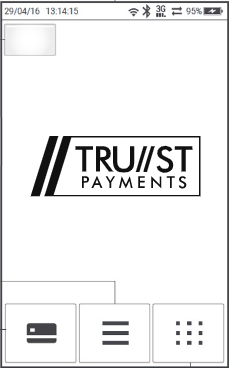
Select Handshake. This should display a communication error which confirms the connection issue.
If successful try a test payment for 1p..jpg?width=190&height=303&name=rtaImage%20(2).jpg)
Below are steps you can attempt to restore the Wi-Fi connection:
From the main menu press the icon with the dots in the bottom-right hand corner.
Select Network.
Select Restore Connection..jpg?width=201&height=351&name=rtaImage%20(12).jpg)
The terminal should show connected if successful. If the terminal displays operation failed please continue with the steps below.
Reboot the internet router. Once other devices have connected you then need to reboot the card terminal by holding down the eye button (above the red button on the keypad) and selecting restart.
Once the terminal has loaded again press the icon with the dots in the bottom-right hand corner of the screen.
Select handshake.
The terminal should show connected if successful. If the terminal displays operation failed please continue with the steps below.
From the main menu press the icon with the dots in the bottom-right hand corner of the screen.
Select network.
Select settings.
This will perform a scan for Wi-Fi networks. Select your network and then enter the Wi-Fi password. You will need to keep pressing the corresponding number on the keypad. As shown below it will cycle through lower case letters first, then upper case followed by the corresponding number as you keep pressing it.
If the letters are not present on the keypad use the key below:
1 - Q, Z
2 - A, B, C
3 - D, E, F
4 - G, H, I
5 - J, K, L
6 - M, N, O
7 - P, R, S
8 - T, U, V
9 - W, X, Y
0 - Symbols
# - Symbols
Press the green button once entered.
.jpg?width=201&height=352&name=rtaImage%20(3).jpg)
The terminal will then display connected if successful.
As a last resort from the main menu press the icon with the dots in the bottom-right hand corner.
Select network.
Select factory reset.
From here the terminal will reboot and perform a scan for networks. Select your network and enter the Wi-Fi password. You will need to keep pressing the corresponding number on the keypad. As shown below it will cycle through lower case letters first, then upper case followed by the corresponding number as you keep pressing it.
If the letters are not present on the keypad use the key below:
1 - Q, Z
2 - A, B, C
3 - D, E, F
4 - G, H, I
5 - J, K, L
6 - M, N, O
7 - P, R, S
8 - T, U, V
9 - W, X, Y
0 - Symbols
# - Symbols
.jpg?width=640&height=363&name=rtaImage%20(9).jpg)
Press the green button once entered.
The terminal will then display connected if successful.
If you are still experiencing issues please e-mail tech.support@card-saver.co.uk for assistance.