
On the sale screen, press the blue box at the top of the screen..jpg?width=226&height=300&name=rtaImage%20(59).jpg)
Select One-Time Transactions.
.jpg?width=203&height=300&name=rtaImage%20(60).jpg)
Select Refund.
The terminal will prompt for your supervisor password. Once entered press the green button.
.jpg?width=200&height=300&name=rtaImage%20(61).jpg)
If you do not know the Supervisor password. Please click on "Chat" on the bottom-right hand corner of the screen or e-mail techsupport@card-saver.co.uk for assistance.
The terminal will then return to the previous sale screen but it should now say Refund instead.
Enter the amount for the transaction using the keypad and press the green button.
When the screen says to present the card, start keying in the 16 digit card number and press the green button once entered.
.jpeg?width=233&height=300&name=rtaImage%20(1).jpeg)
The terminal will then prompt step-by-step on the screen as to the different details you need to enter.
Enter the expiration date of the card and press the green button
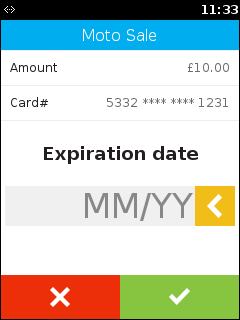
Enter the 3 digit security code and press the green button
.png?width=225&height=300&name=rtaImage%20(1).png)
Enter the house number for the address associated to the card and press the green button. If no house number applicable you can just press the green button.
.png?width=225&height=300&name=rtaImage%20(2).png)
Enter the postcode and press the green button. Please note that you only need to enter the numbers within the postcode.
.png?width=240&height=320&name=rtaImage%20(3).png)
A summary screen will then proceed to show if all of the details have matched or not.
If for example the postcode has not matched it is recommended to press the red button on the keypad and re-attempt the transaction.
Otherwise press the green button to proceed.
If the error "Invalid Txn" displays, ensure that only the numbers within the postcode are being entered.
If you should experience any issues please check our troubleshooting articles.