
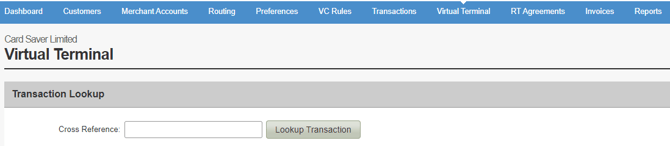
Select Virtual Terminal from the blue bar at the top of the screen.
If you wish to re-take a previous transaction at this stage you can use the cross-reference number from the transactions screen. All you will need to re-enter is the CVV code.
1) Transaction Details
Transaction Process - Will default to process transaction now.
Merchant Account - This will default to the Virtual Terminal MID (which is correct) otherwise you can change this to the American Express MID from the drop-down if required.
Transaction Action - Includes options for Sale, Refund, and Pre-Authorization.
Capture/Settle - To process the transaction now select "automatically immediately", otherwise you can set for the amount to be taken whenever you like.
Payment Type - "One Off" by default, otherwise you can use "Initial Recurring" for an RT agreement.
Unique Reference and Order Description - Non mandatory fields which can be used at your discretion.
-Dec-03-2025-07-32-17-1180-AM.jpeg?width=450&height=396&name=rtaImage%20(1)-Dec-03-2025-07-32-17-1180-AM.jpeg)
2) Enter the relevant card details.
3) Enter the customer contact details.
-Dec-03-2025-07-32-17-1355-AM.jpeg?width=571&height=344&name=rtaImage%20(2)-Dec-03-2025-07-32-17-1355-AM.jpeg)
It is important at this stage to ensure that the 1st line of address and postcode is entered correctly for AVS checking.
4) Delivery Details
This is an optional section which is only relevant if you are delivering a product to a customer at a different address (rather than the billing address that was previously entered).
-Dec-03-2025-07-32-17-1531-AM.jpeg?width=497&height=385&name=rtaImage%20(3)-Dec-03-2025-07-32-17-1531-AM.jpeg)
5) Notification Details
This provides the option for an e-mail receipt to sent to you, as well as the customer for the payment taken.
Merchant Notification E-mail - If you wish to receive a receipt please enter your e-mail address here.
Customer Receipt - If the e-mail address was entered when processing the customers billing information, select "Required" from the drop-down. This will then send an e-mail receipt to the customer.
-3.jpeg?width=449&height=136&name=rtaImage%20(4)-3.jpeg)
6) Click "Process transaction now"
-3.jpeg?width=209&height=50&name=rtaImage%20(5)-3.jpeg)